Using Dungeon Helper
In game
The toolbar
The toolbar shows the Dungeon Helper chalice, then one icon for each plugin you’ve turned on. Click a plugin’s icon to show or hide its window.
- Drag the chalice to move the toolbar. It snaps to the nearest screen edge and turns vertical on the left and right edges.
- The cog on the chalice opens Dungeon Helper’s settings, as does the backtick key (
`). - A green arrow on a plugin’s icon means an update is available. Click it to open the app and install it.
- When there are more plugins than fit, a » button lists the rest.
- Right-click the toolbar for a menu: Hide all plugins (then Show hidden plugins to bring the same ones back), Show / Hide and Reset UI for each plugin, Reset bar, Hide bar and Settings.
Settings window
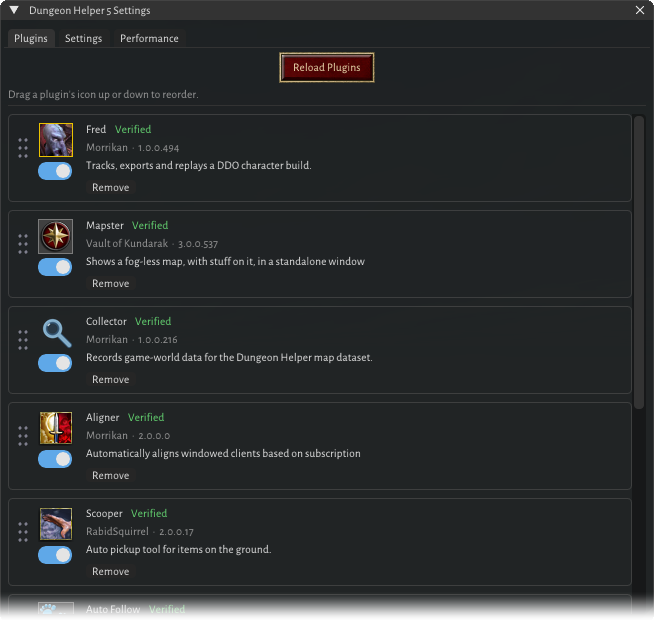
Plugins lists every installed plugin with an on/off toggle, its version, and a Verified badge when its signatures check out. Toggles apply to the account you’re logged in to. Drag a plugin by its grip to change its place on the toolbar. Reload Plugins picks up plugins added since the game started. After a plugin updates, toggle it off and on again to load the new version.
Settings has the toolbar options (Dock to screen edges, Fade when idle), the look of every Dungeon Helper and plugin window, the hotkeys, and a button to open the plugins folder.
Dungeon Helper also has settings to adjust the UI scale and text scale of all Dungeon Helper components. See ingame for more details.
Hotkeys
Dungeon Helper has six hotkeys of its own, set in the Hotkeys section of the Settings tab. They’re shared by every account on the PC.
| Hotkey | Default |
|---|---|
| Toggle Settings | ` (backtick, the key left of 1) |
| Hide topmost plugin | Ctrl+Shift+T |
| Hide / show all plugins | Ctrl+Shift+H |
| Hide / show DH bar | Ctrl+Shift+B |
| Reset DH bar | Ctrl+Shift+R |
| Reset topmost plugin’s UI | Ctrl+Shift+U |
- Change records a new key, Clear unbinds one, and Reset all hotkeys to defaults puts them back. Dungeon Helper warns you when two actions share a key.
- Toggle Settings or Hide / show DH bar always stays bound, so there’s always a way back to Dungeon Helper.
- Hotkeys act only on the DDO client in the foreground, and not while you’re typing in a Dungeon Helper or plugin window.
- Reset topmost plugin’s UI puts a plugin’s windows back to their default place and size, for a window that has ended up off screen or the wrong shape.
Plugins have their own hotkeys, set in each plugin’s window.
Window layout
Each account keeps its own window positions and sizes, so multi-boxed clients don’t rearrange each other.
Chat command
Type /dh help in chat to list every chat command Dungeon Helper and your plugins have registered.
The app
Installation
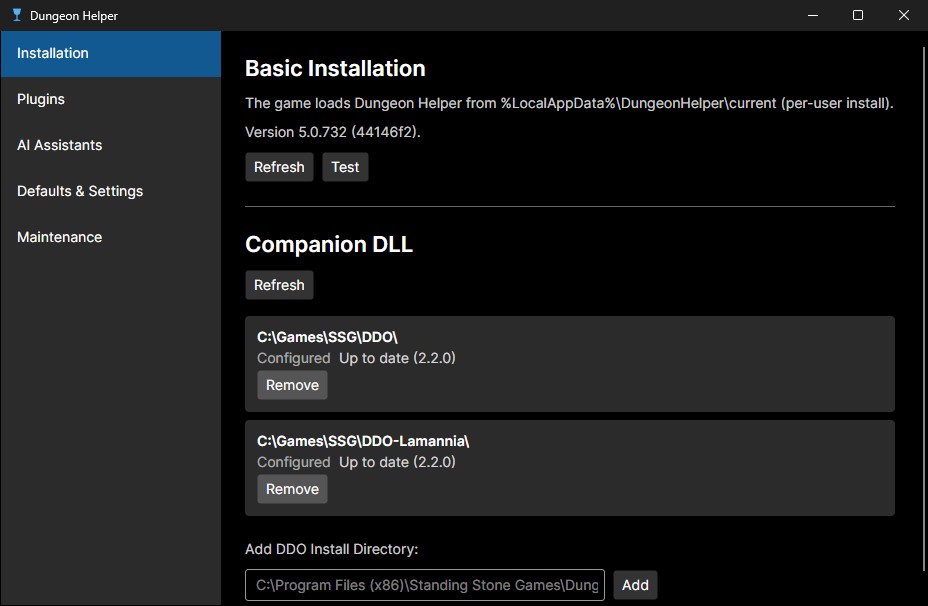
- Basic Installation: where the game will load Dungeon Helper from, and its version. You can use the “Test” button to verify Dungeon Helper should be able to load properly ingame.
- Companion DLL: one listing for each DDO installation, with its status and a Deploy button that
deploys Dungeon Helper’s Companion Dll (
dndpl.dll). DDO must be closed to replace the companion dll, and must be relaunched after any deployments. - Add DDO Install Directory adds an install Dungeon Helper could not automatically locate.
Plugins
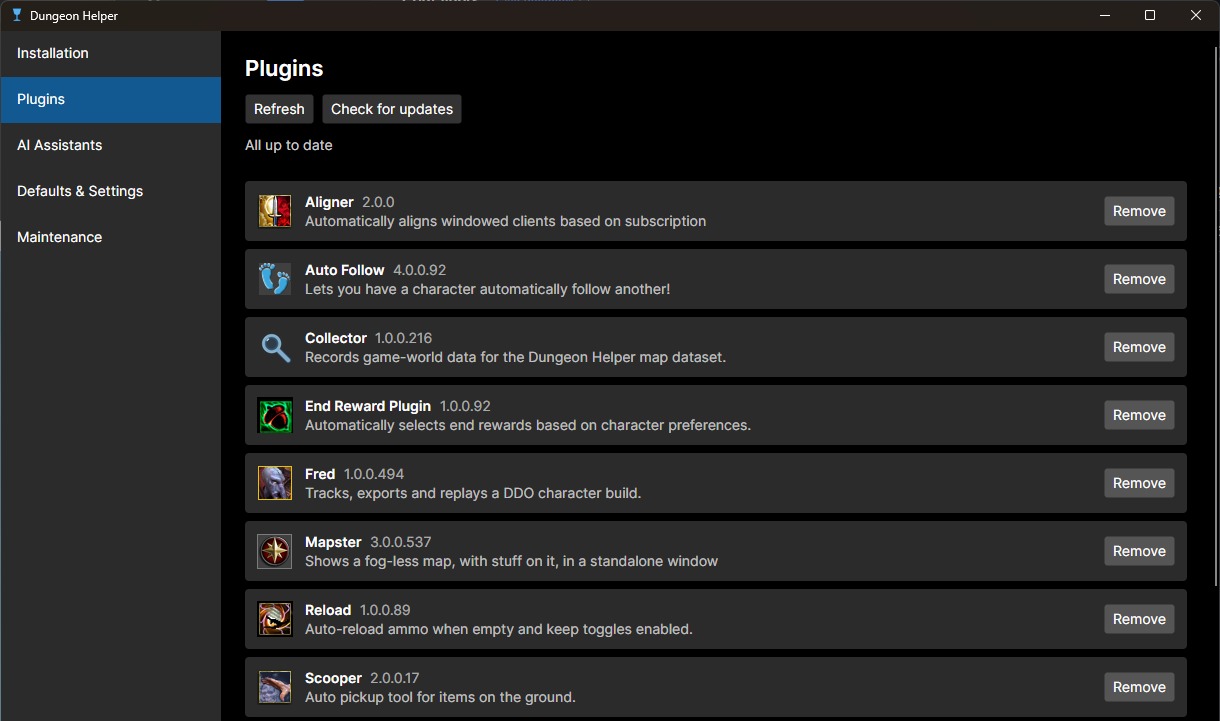
- Check for updates, then Install on each update you want. Nothing downloads until you press Install.
- Each installed plugin shows its icon, name, version and description. A plugin that carries its own Dungeon Helper entitlement also shows its author and a tier: official (published by Dungeon Helper), community (published by another author) or personal (a developer’s own build).
- Remove deletes a plugin and its folder. Dungeon Helper will warn you that you will lose all saved data for that plugin.
- Install from zip: drag a plugin’s
.ziponto the page, or use Browse…, then press Install.
Plugins are toggled on and off in game, not here: see Settings window.
Defaults & Settings
Default Plugin Selection chooses which plugins start toggled on for accounts that haven’t chosen yet. Choices made in game win. The list fills in once the game has run with Dungeon Helper at least once.
Maintenance
- Updates: your current version, the update channel, Check for Updates and Apply Update & Restart.
- Machine Identity: only for plugin developers. See For plugin authors.
Why a plugin can be refused
A plugin runs inside your game with the same access as the game itself, so Dungeon Helper only loads plugins it has authorized. Every plugin carries three things:
- an entitlement, a small certificate issued and signed by Dungeon Helper that names the plugin and its author;
- a signed file list, from the author, of exactly what the plugin ships with;
- a signature on the plugin itself, made with the same author’s key.
Dungeon Helper checks all three every time the game starts, and again when you install or update a plugin. It also keeps a signed list of authorizations it has withdrawn, which is checked even when you’re offline.
“Authorized” means Dungeon Helper issued the plugin an entitlement and the files haven’t been changed since their author signed them. It isn’t a guarantee that a plugin is bug-free.
When a plugin is refused, Dungeon Helper tells you why rather than failing silently. In game it’s listed as [NOT AUTHORIZED] with the reason underneath; in the app, a refused update appears in red with advice. Usually the fix is to update the plugin, or to wait for its author to publish a corrected version.