Download & install
Dungeon Helper 5 is free. Setting it up takes a few minutes, and most of that is a game restart.
Download Dungeon Helper 5 beta
What you need
- Windows 10 or 11, standard DDO installation (non-Steam), DirectX 10 or 11 capable hardware
- DDO set to DirectX 10 or DirectX 11, in the game’s graphics options. Dungeon Helper shows nothing in game under DirectX 9 or OpenGL.
- Administrator approval, once per deploy, only if DDO is installed under
C:\Program Files.
1. Run the installer
Run the installer you downloaded (DungeonHelper-…-Setup.exe). The button above shows which version it
is. It installs just for your Windows account, into
%LocalAppData%\DungeonHelper, and doesn’t ask for administrator rights.
Windows may warn you first. The installer isn’t code-signed, because a signing certificate costs more than a free project can justify, so Windows SmartScreen shows “Windows protected your PC”. Click More info, then Run anyway. That warning appears for any unsigned program; it isn’t a detection of anything harmful.
The installer includes four plugins: AutoFollow, Mapster, Scooper and Trove. All plugins are turned off by default - you must turn on the ones you want to use.
2. Connect Dungeon Helper to DDO
Open Dungeon Helper (the chalice icon) and go to the Installation section.
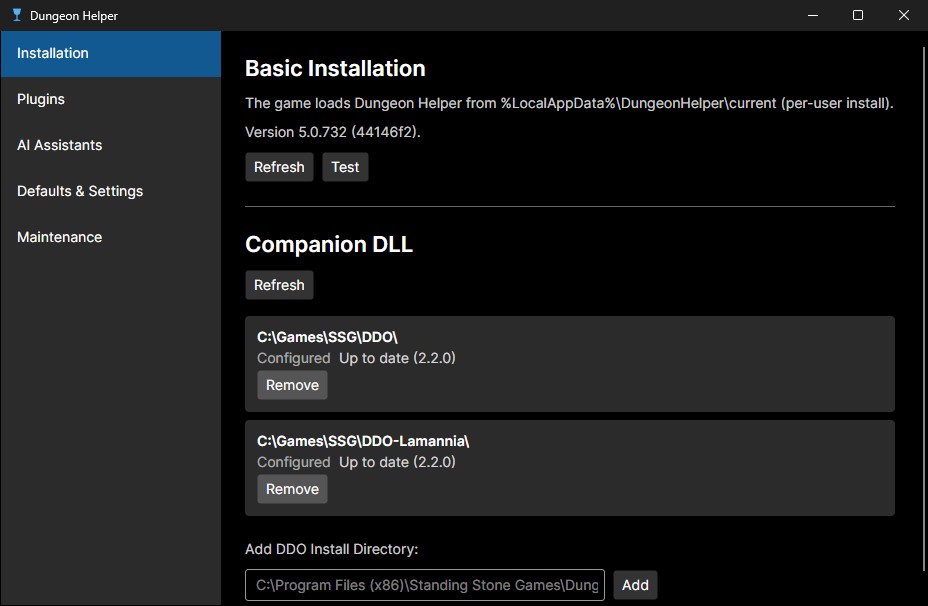
- Companion DLL → Deploy for each DDO install listed. This puts Dungeon Helper’s small loader into the
game’s
x64folder, and DDO loads it by itself from then on. Close DDO first. The status should then read “Up to date”. - Basic Installation should show where the game will load Dungeon Helper from. Press Test to check it starts.
Dungeon Helper looks for your DDO installs the first time it starts. If one is missing, type the DDO folder under Add DDO Install Directory and press Add. Use the game’s main folder,
not its x64 folder.
If DDO is installed under C:\Program Files, Windows may open a security prompt to perform the
deployment.
3. Start DDO and enable your desired plugins
Launch DDO as usual. You’ll see a notice that Dungeon Helper is loaded, and the Dungeon Helper toolbar (the chalice) on screen.
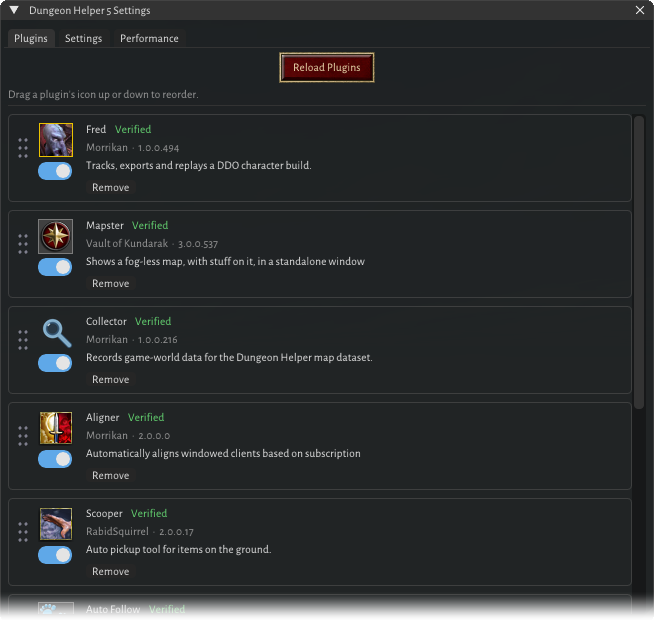
Press the backtick key (`) (or click the cog on the chalice) to open Dungeon Helper’s settings. On the
Plugins tab, toggle the switch for each plugin you want. Plugin selection is saved per account, so
multi-boxers do this once for each account. Toggled-on plugins appear on the toolbar; click one to open
its window.
Updates
- Dungeon Helper checks for updates when the app starts. Go to Maintenance → Check for Updates. If updates are available, close DDO, then click Apply Update & Restart.
- Occasionally, an update also brings a new in-game loader. Most updates don’t touch it, but when one
does, the app replaces it by itself as it restarts. If it couldn’t (DDO was running, or the install is
under
C:\Program Files), the app’s banner says so and Companion DLL shows “Update available”. Close DDO and press Deploy. - Plugins update separately. In the Plugins section, press Check for updates, then Install on each one you want. A plugin with an update also shows a green arrow on its toolbar icon in game; clicking it opens the app.
Channels
Dungeon Helper 5 is in beta, and the beta channel is the only one currently supported. We’ll update once we make a stable release.
Something not working? See Troubleshooting.