
Awesome AutoFollow
Checking for the latest version…
Coming from Dungeon Helper 4? What changed in Awesome AutoFollow
Awesome AutoFollow (AAF) is for players who box several DDO characters at once. Pick a leader and every other client runs after it: up ladders, through water, in flight and on mounts. Followers enter quests with you, recall with you, accept your resurrections and teleports, and pass chest loot to you. On the leader’s screen each follower gets a hireling-style bar with health, spell points, cooldowns and hotbar slots you can click, and a coloured ring on the ground shows whether that follower is keeping up.
AAF is a full rewrite for Dungeon Helper 5. In game it appears as Auto Follow on the Dungeon Helper toolbar.
Getting started
- Launch all your DDO clients and log your characters in. In each one, press the backtick key (
`) to open Dungeon Helper’s settings and toggle Auto Follow on under Plugins. Plugins are toggled on per account, so each boxed account needs it. - Group them up. Followers accept party invites automatically by default.
- On each follower, open Auto Follow from the toolbar, go to the Following tab, choose your leader under Player to Follow and press Start. Or, on the leader, press All Follow Me, NOW! on the Leading tab to start every AAF client on that PC at once.
- On the leader, bind the hotkeys you want on the Hotkeys tab. They all start unbound.
- Drag each follower’s hireling bar where you want it. Click its gear button to choose which of that follower’s hotbars it shows.
- Play. Hold Ctrl while using an object or picking an NPC dialog option and your followers do the same.
Following
- Follow anyone you can see. Pick the leader from the list of nearby players, or select them in game and press the Follow hotkey.
- Moves like a player. Followers steer smoothly, stop at the follow distance the leader chose, match the leader’s facing, and handle swimming, flying, ladders and falling.
- Stays with you in a fight. When you and a follower target the same monster, the follower faces it and strafes or backpedals with you instead of turning its back.
- Knows when it’s lost. If a follower can’t reach you for more than five seconds (wrong area, too far, or stuck on terrain), it flags itself as left behind: its ring turns red, its bar flashes and beeps, and its toolbar icon turns red.
- Never leaves a character running. Stopping or unloading the plugin always releases the movement keys.
The toolbar icon shows each client’s state: blue not following, green following, yellow waiting near the leader or paused, red lost the leader.
Follower settings
Set per character on the Following tab.
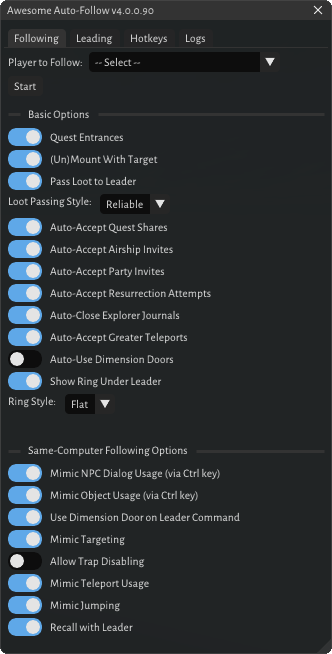
| Setting | What it does | Default |
|---|---|---|
| Quest Entrances | Enters the quest when the leader does, and closes the portal dialog when the leader declines | On |
| (Un)Mount With Target | Mounts and dismounts with the leader, retrying if a monster interrupts the cast | On |
| Pass Loot to Leader | When a chest opens, reassigns everything reserved for this follower to the leader | Off |
| Auto-Accept Quest Shares | Accepts quest shares while following | On |
| Auto-Accept Airship Invites | Accepts airship invitations while following | On |
| Auto-Accept Party Invites | Accepts party invitations (from anyone, even when not following) | On |
| Auto-Accept Resurrection Attempts | Accepts resurrections while following or paused | On |
| Auto-Close Explorer Journals | Closes the explorer journal that pops up at explorer points | On |
| Auto-Accept Greater Teleports | Accepts a Greater Teleport cast by your leader | On |
| Auto-Use Dimension Doors | Uses a Dimension Door when one appears while following | Off |
| Show Ring Under Leader | Draws a blue ring on the ground under the character you follow | On |
Same-computer options
These rely on commands from the leader, so they work only between clients on the same PC.
| Setting | What it does | Default |
|---|---|---|
| Mimic NPC Dialog Usage | Hold Ctrl while picking an NPC dialog option and followers pick the same one | On |
| Mimic Object Usage | Hold Ctrl while using a door, lever, portal or chest and followers use it too | On |
| Use Dimension Door on Leader Command | Uses a Dimension Door when the leader presses the hotkey | On |
| Mimic Targeting | Followers select whatever the leader selects | On |
| Allow Trap Disabling | Lets object mimicry include trap control panels | Off |
| Mimic Teleport Usage | When the leader uses a Commemorative D12, Eveningstar Key or expansion teleport, each follower uses its own (it must be on the follower’s hotbar) | On |
| Mimic Jumping | Jumps when the leader jumps | On |
| Recall with Leader | Recalls when the leader recalls | On |
Leading
The Leading tab is set per character.
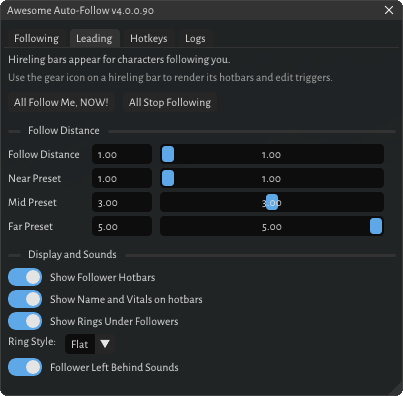
- All Follow Me, NOW! starts every AAF client on this PC following you. All Stop Following stops them.
- Follow Distance (1.0 to 5.0) sets how close followers stay. The Near / Mid / Far presets are what the three distance hotkeys switch to (1.0, 3.0 and 5.0 by default).
- Show Follower Hotbars and Show Name and Vitals on hotbars control the hireling bars.
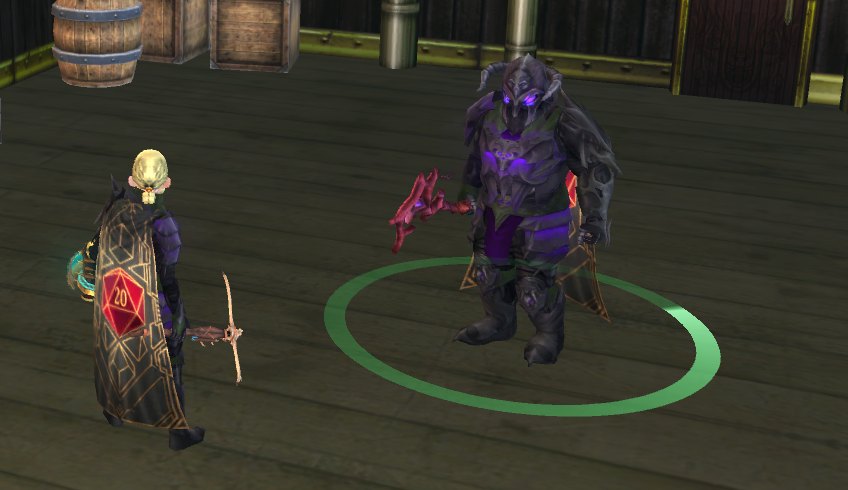
- Show Rings Under Followers draws a ring at each follower’s feet: green following, yellow paused, red stuck or left behind. Rings are real 3D shapes in the game world, so walls hide them, with a faint outline showing through so you can find a follower around a corner.
- Follower Left Behind Sounds beeps when a follower reports being left behind.
Hireling bars
Every client following you gets a movable bar on your screen, styled after DDO’s hireling bars:
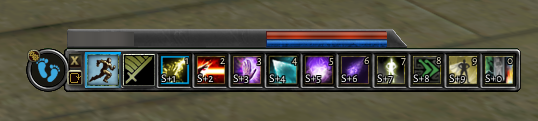
- the follower’s name, health and spell points, turning grey if it’s dead or helpless;
- a button to pause or resume that one follower, one to toggle its auto-attack, and one to stop it;
- a button to switch the bar between horizontal and vertical;
- any one of the follower’s ten hotbars, mirrored: click a slot and the follower uses it. Slots show stack counts, clicky charges, feat uses, cooldown timers, equipped items and active toggles.
Bar positions are remembered between sessions, and a bar disappears on its own when that client closes.
Driving followers from your own keys
The gear button on a bar opens the trigger editor. Assign the follower’s hotbar to one of DDO’s hireling slots (1 to 5) and your existing DDO hireling-bar keybinds fire it with no further setup. You can also map any of your own hotbar slots, any DDO action you’ve bound to a key, or a custom key combination to any follower slot. Triggers fire only while you’re leading, and the follower uses its own current target.
Hotkeys
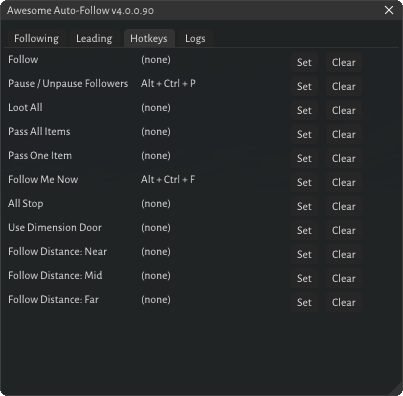
Hotkeys are shared by all your characters, and every one starts unbound. Click Set and press a key combination (Ctrl, Shift and Alt all work).
| Hotkey | Effect |
|---|---|
| Follow | Start following the player you have selected |
| Pause / Unpause Followers | Toggle your followers; if any are paused, one press resumes them all |
| Loot All | Followers take everything from their open chest |
| Pass All Items | Followers pass every chest item reserved for them to you |
| Pass One Item | Select an item reserved for a follower and that follower passes just that item |
| Follow Me Now | Same as All Follow Me, NOW! |
| All Stop | Every follower stops |
| Use Dimension Door | Followers use the nearby Dimension Door |
| Follow Distance: Near / Mid / Far | Switch to that follow distance |
Good to know
- Install AAF in every client, and keep them on the same version. Clients on different AAF builds can’t share session data.
- Different PCs: a follower on another computer can still follow a leader it can see, jump with it and auto-accept invites, but it doesn’t get Ctrl mimicry, targeting, recall, portal entry, loot commands, teleport mirroring, hireling bars or the leader’s follow distance.
- Hotbar features need the item on the hotbar. Teleport mirroring, the auto-attack toggle, mounting and triggers use what’s on the follower’s hotbars.
- Settings from AAF 3.x aren’t carried over. Set your characters up again after upgrading.
- The Logs tab shows AAF’s activity in game if you need to see what it’s doing.