
Mapster
Checking for the latest version…
Coming from Dungeon Helper 4? What changed in Mapster
Mapster opens a full map of wherever you are, with the fog already lifted and live icons for everything the game has loaded around you. Community sightings of rares, chests, bosses, journals and explorer points show up too, even ones you haven’t reached yet. Record a route once and it’s drawn as a glowing path on the ground next time. Toggle on trap outlines to see invisible traps and their control boxes before you step on them.
Getting started
- Log in, press the backtick key (
`) to open Dungeon Helper’s settings, and toggle Mapster on under Plugins. - Click the Mapster icon on the Dungeon Helper toolbar, then press Open Map, or type
/map showin chat. - Drag the map window wherever suits you. A second monitor works well. Turn on Keep map above other windows if you want it to stay on top.
- Under Hotkeys, press Set next to Open Map and choose a key, so you can open and close the map without the settings panel. No hotkeys are bound until you set them.
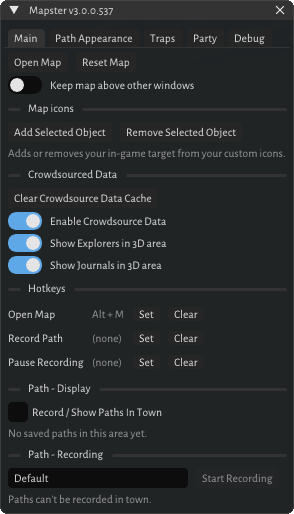
The map window
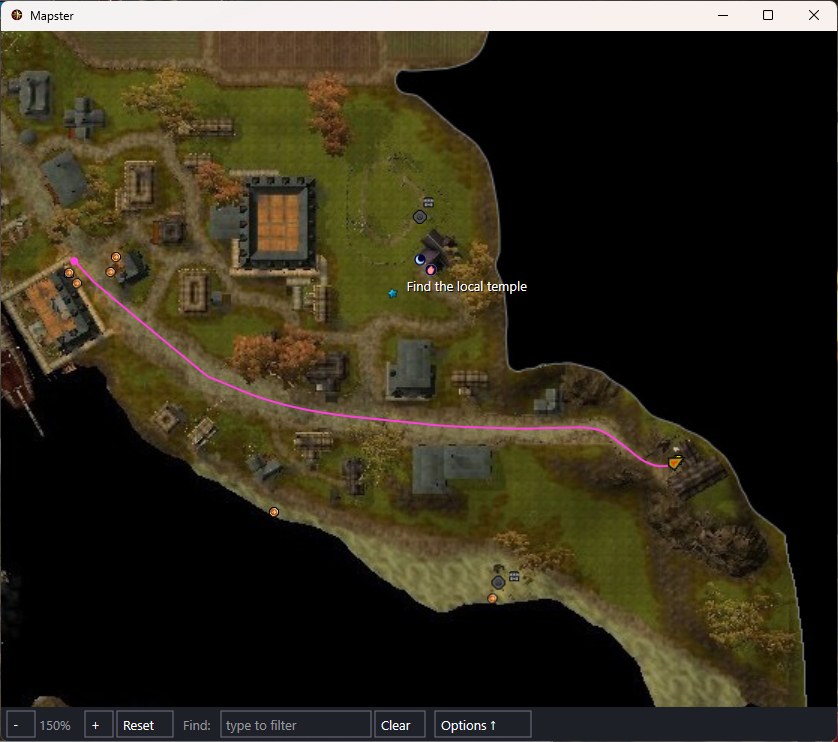
The map is its own window, outside the game. It runs at a steady frame rate whatever the game is doing, and opening it with the hotkey doesn’t take the keyboard away from DDO.
- Follows you, north-up, with an arrow showing which way you’re facing. It loads the next area’s map on its own when you change area.
- Pan and zoom: drag to pan (the map re-centres once you move), use the mouse wheel or − / + to zoom, and Reset to go back to 100%.
- Hover over an icon to highlight it and see its name. Things well above or below you show the height difference, for example “(+12.0)”.
- Click an icon to target it in game.
- Find: type a name to show only matching objects. Matches blink, and arrows at the window edge point to any that are off-screen.
- Party members appear even outside the area your client has loaded, with edge arrows when they’re off-screen.
- Save PNG exports the whole map at full resolution, with your routes and the icons your filters allow, as a clean route map to share.
What to show
The Options button in the map window chooses what’s drawn.
| Option | Shows | Default |
|---|---|---|
| Monsters | Monsters, champions, reapers, and mini-boss, boss and raid-boss icons | On |
| NPCs | Friendly NPCs and services | On |
| Notes | The game’s map notes: vendors, trainers, taverns and so on | On |
| Labels | A name on every icon | Off |
| Boss Labels | Names on boss, champion and reaper icons | On |
| Spoilers | Traps, control panels and secret doors | Off |
| Breakables | Breakable objects | Off |
| Other | Chests, doors, shrines, collectibles, levers and other fixed objects | On |
| Fade by Z | Fades icons far above or below you | Off |
| Crowdsourced Data | Community-collected pins (see below) | On |
Want an icon for something Mapster doesn’t show? Target it in game and press Add Selected Object, and that kind of object is always shown from then on.
Community map data
With Enable Crowdsource Data on (the default), Mapster downloads community sightings for your current
area from data.dungeonhelper.com: rares, bosses, raid bosses, chests, explorer points, journals, traps,
control panels, collectibles, keys, levers, shrines, NPCs, waypoints and crests. They appear as pins even
before your client has loaded them. The sightings come from players running Collector.
Things that only spawn sometimes are drawn in grey until you get close enough for the game to confirm them. Downloads are cached and only fetched again when new data is published. Lamannia uses its own data and never mixes with the live servers. Turn the setting off and the downloads stop.
Show Explorers in 3D area and Show Journals in 3D area float a star over each explorer point and a scroll over each journal in the game world, dimmed behind walls.
Routes
Type a name under Path - Recording, press Start Recording and run the route. Mapster records your position as you move and saves it as you go. Pause lets you stop to fight or look around (resuming somewhere else draws a straight line across the gap), and Stop Recording saves it. The Mapster toolbar icon shows a red dot while you’re recording.
Each saved route is listed per area. Click the name to rename it, toggle 2D (on the map) and 3D (in
the game world), change its colour, or delete it. Routes are .mappath files in the area’s folder. The
Folder button in the map window opens it, and a route file a friend sends you appears as soon as you
drop it in.
Routes aren’t recorded or shown in town unless you turn on Record / Show Paths In Town.
Routes in the game world
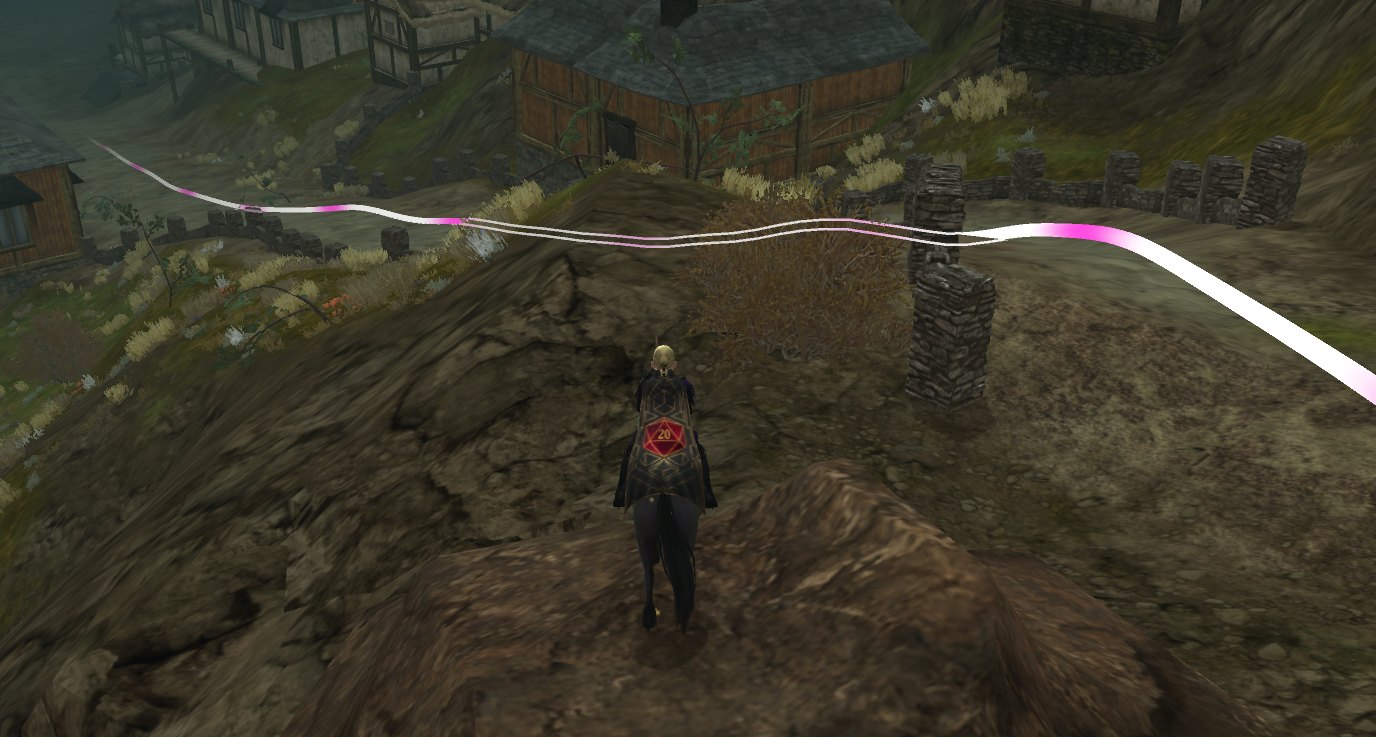
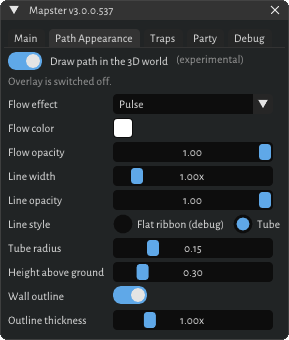
On the Path Appearance tab, Draw path in the 3D world (experimental) draws each route with 3D turned on as a tube just above the ground. Walls and floors hide it properly, and Wall outline shows a thin outline where it’s hidden so you can still follow it. You can adjust the flow effect (None, Comet, Wave or Pulse), colours, width, opacity, tube size and height.
Party trails
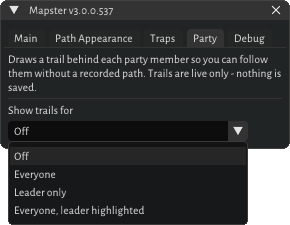
On the Party tab, Show trails for draws a live trail behind party members in the game world: Everyone, Leader only, or Everyone, leader highlighted. Each member gets a floating name tag. A trail keeps recording when the leader zones ahead, so it’s waiting when you arrive. Trails aren’t saved, and they’re rough for members too far away for the game to send regular updates.
A trail is drawn exactly like a route in the game world, using the same tube and flow settings from Path Appearance, with its own colour controls on the Party tab.
Trap outlines
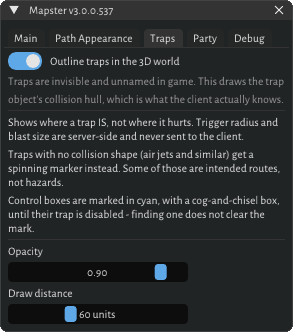
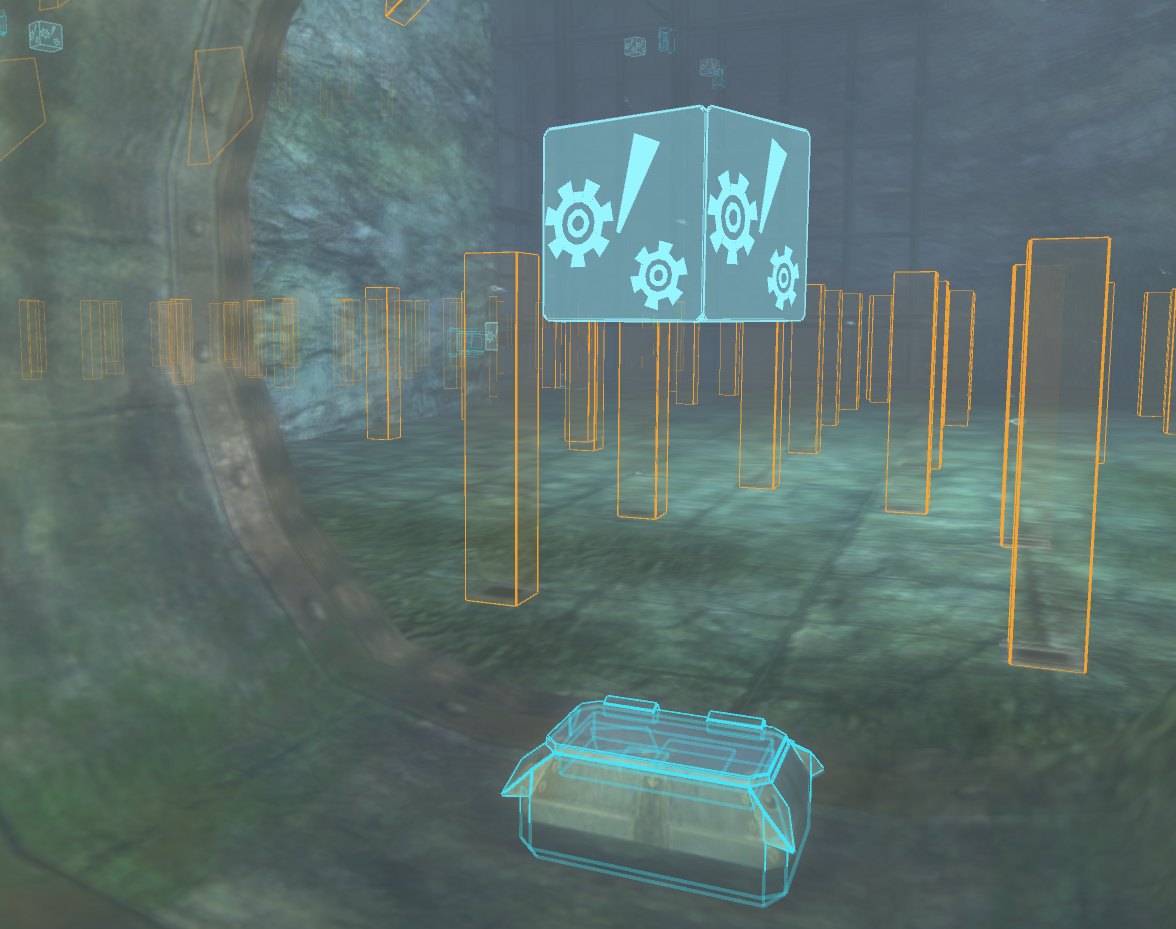
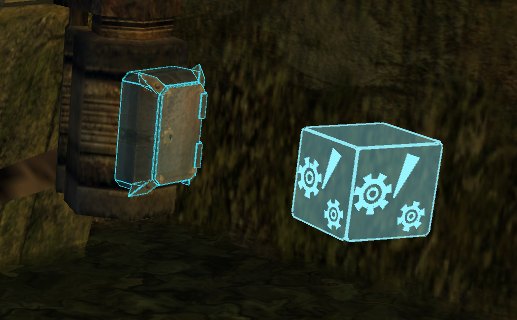
On the Traps tab, Outline traps in the 3D world outlines every trap’s body in orange. Traps without a body (air jets and the like) get a spinning ! marker instead. Trap control boxes are outlined in cyan until the trap is disabled. Opacity and draw distance are adjustable, and this works with the map closed.
This shows where a trap is, not how far it reaches: the trigger radius and blast size never leave the game’s servers.
Good to know
- Fullscreen players: the map is a separate window, so use windowed or borderless mode, or a second monitor.
- Multi-boxing: 3D settings (routes, trails, traps and markers) are saved per account, so a follower client can leave them off. They stay off until you log in.
- Hotkeys: Open Map, Record Path and Pause Recording, all unbound until you set them.
- The map image for The One-Eared Bugbear can’t be used; icons still show on a blank background there.