
Scooper
Checking for the latest version…
Coming from Dungeon Helper 4? What changed in Scooper
Scooper walks the world with you and grabs what you tell it to: coin piles, collectable nodes, explorer texts, tomes, Guild renown, treasure bags, and anything else you write a rule for. Each rule can be limited to quests or town, to chests or end rewards, to named or random loot, and to mythic or reaper bonuses, down to augment slot colours.
It’s careful about it, too. Scooper never uses doors, levers or NPCs unless a rule is built for it, only acts on the object it actually selected, and confirms each pickup with the game (your wallet, your gathering bags, your inventory) instead of assuming it worked.
Getting started
- Log in, press the backtick key (
`) to open Dungeon Helper’s settings, toggle Scooper on under Plugins, and click the Scooper icon on the toolbar. - Scooper starts by itself when you log in. Use Start / Stop, or set a toggle hotkey under Config → Hotkeys.
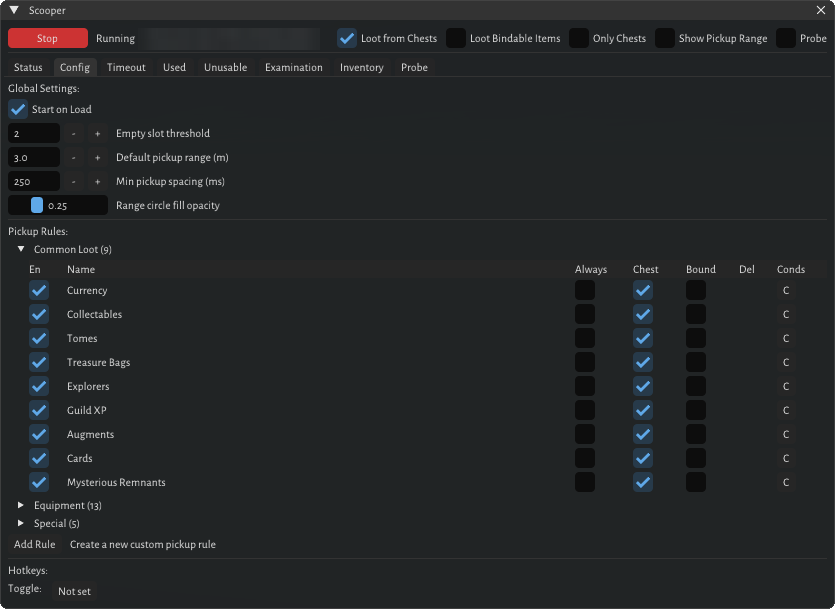
- The Common Loot rules are on from the start: coins, collectables, tomes, treasure bags, explorer texts, Guild renown, augments, cards and Mysterious Remnants. Walk near them and they’re picked up.
- Under Config → Pickup Rules, tick any Equipment or Special rules you also want.
- Set Empty slot threshold so Scooper leaves room in your inventory.
The main window
Above the tabs:
- Start / Stop turns auto-pickup on and off.
- Loot from Chests also takes matching items out of chests you open (off by default).
- Loot Bindable Items allows bound-on-acquire items and confirms the bind prompt for you (off by default).
- Only Chests picks up nothing unless a chest or end-reward panel is open (off by default).
- Show Pickup Range draws the reach circles described below.
The Status tab shows how many items Scooper has picked up, your quest CR and reaper level, and a running log of what it matched, tried, picked up and skipped, and why.
Rules
Rules come in four groups, and the first enabled rule that fully matches an object wins.
- Common Loot (on by default): Currency, Collectables, Tomes, Treasure Bags, Explorers, Guild XP, Augments, Cards, Mysterious Remnants.
- Equipment (off by default): Equipment, Potions, Gems, Soul Stones, Soul Gems, Missile Weapons, Keys, Ingredients, XP Stones, Components, Tools, Scrolls, Wands.
- Special (off by default): Lost Souls, Dual Slot Items, Mythic Bonus, Reaper Bonus, and Breakables (smashes crates and barrels).
- Custom: your own rules.
Each rule has columns for Always (ignore the empty-slot threshold), Chest (take from chests: follow Loot from Chests, Yes or No) and Bound (take bound items: follow Loot Bindable Items, Yes or No), plus a C button for its conditions.
Conditions
The place conditions (In Town, Out of Town, In Quest, In Explorer) pass if you’re in any ticked place. Every other ticked condition must pass: From Ground, From Reward, Has Reaper Effect, Has Mythic Effect (with levels to exclude), Has Dual-Slot or Single-Slot Augments (with slot colours to exclude), Is Named, Is Random Gen, and Only When Low Mana. A rule can also set its own pickup range, shorter or longer than the default.
Your own rules
Select something in game, open the Status tab and press Create Rule from Selection. You get a new
rule for exactly that object, which you can refine by clicking its name. Custom rules can match on item
type, item ID, or name, with Exact, Contains, StartsWith or Wildcard matching and several
patterns separated by |.
Why didn’t it pick that up?
Select the object and press Evaluate Selected Item. Scooper writes a full report to the log (what it thinks the object is, how far away it is against its reach, which rules match, and which condition failed) and copies the report to your clipboard. It also warns about rules that contradict themselves, such as Has Dual-Slot Augments together with Has Single-Slot Augment.
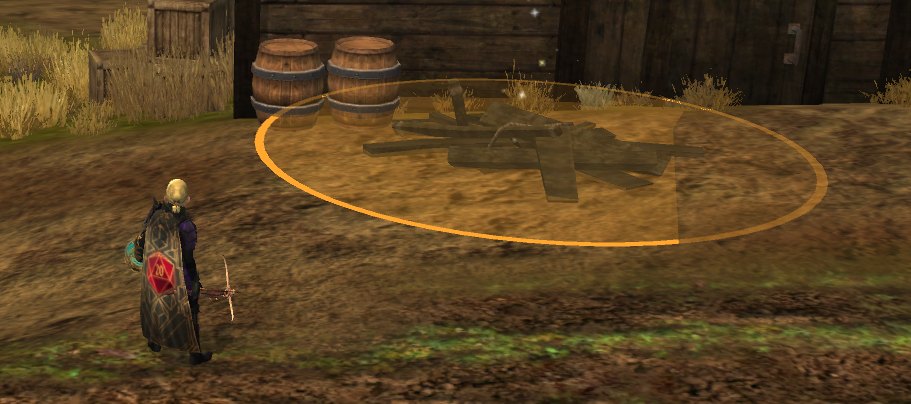
Show Pickup Range draws circles on the ground around every nearby item a rule matches (amber, turning green once you’re close enough) and every chest (violet, turning cyan). They’re sized to Scooper’s real reach and work even while Scooper is stopped, so you can use them just to see how close you need to be.
Settings
Set per character on the Config tab. The toggle hotkey is shared by all characters. For every option in the window, with annotated screenshots, see Scooper settings.
| Setting | What it does | Default |
|---|---|---|
| Start on Load | Starts Scooper when you log in to this character | On |
| Empty slot threshold | Stops picking up when this many free slots are left (gathering-bag items and Always rules ignore it) | 2 |
| Default pickup range (m) | Reach for normal loot | 3.7 |
| Min pickup spacing (ms) | Minimum gap between pickups | 250 |
| Range circle fill opacity | How solid the range circles are | 0.25 |
Smart about the details
- Party loot: skips chest items reserved for someone else, and picks up items passed to you.
- Gathering bags: items your bags can hold are picked up even when your inventory is at the threshold.
- Lost Souls: in reaper difficulty, picks one up only when you’re missing enough spell points to use it well; outside reaper, only when you’re below 10%.
- Pauses by itself while you’re dead, logging out, disconnected, or busy attacking or using something.
- Explorer texts are read and the book closed again.
Good to know
- Scooper 1.x settings carry over automatically the first time each character logs in.
- A pickup that doesn’t take is retried after a short, growing delay. Some treasure bags and chest items can take a few tries.
- Mythic and reaper rules need the item examined first, so they fire a moment after other rules.
- The range circles are flat, so on slopes or for things up on ledges they’re approximate.