Scooper Settings
What every checkbox, number and rule option in Scooper does, and how they combine to decide what your character picks up. The numbered markers on each screenshot match the numbers in the table below it.
Where your settings are kept
Every change saves the moment you make it. There is no Save button. Scooper keeps three kinds of file in its plugin folder:
| File | Shared by | Holds |
|---|---|---|
ScooperConfig.json | all characters | the toggle hotkey |
ScooperConfigs/0x<character id>.json | one character | that character’s settings and its pickup rule table |
ScooperProfiles/<name>.json | all characters | a saved copy of a rule table (rules only) |
Save Rules copies a character’s rule table into a profile. Load replaces a character’s rule table with a profile’s. Loading never touches the settings at the top of the window or under Global Settings.
How Scooper decides
Several times a second Scooper looks at everything near you. It handles one pickup at a time, and for each object it works down this list. The first step that fails ends it for now.
- Is Scooper running? If not, nothing happens.
- Basic checks. Skips anything already in your inventory or someone else’s, loot reserved for another party member, and one-use objects that have already been used.
- Only Chests. If it’s on, waits until a chest or end-reward panel is open.
- Pacing. Waits until no other pickup is in progress and Min pickup spacing has passed.
- The rule table. Tries your enabled rules from the top. The first rule that passes all of these wins: it matches the object (type, ID or name), its conditions pass, the object isn’t used up or locked, the rule is allowed that kind of object, its Chest setting allows an item in an open chest, its Bound setting allows a bound-on-acquire item, and you’re within range.
- Item checks. The backpack needs more free slots than the Empty slot threshold unless the rule has
Always. A failure here shows in the log as
Skipped: … (reason). - Use it. Scooper uses the object directly, without changing your target.
- Check it worked. Scooper waits for the sign that fits: your wallet going up, a gathering bag filling, the item reaching your inventory, or the object reporting it was used. Only then does the pickup count. If nothing happens in time it retries after a short, growing delay. If the object simply vanishes (someone else took it), it isn’t counted.
Two things follow from this. Rule order matters: the first rule that passes decides, and its Always setting is the one used. A rule whose Chest or Bound says no doesn’t block the item; Scooper moves on to the next rule that matches. And range is checked last, so if no rule is in range, nothing happens until you walk closer.
How far Scooper reaches
- If the rule has its own Max range (in its conditions), that’s used, larger or smaller than normal.
- Otherwise, if the object or the chest it’s in has its own interact range, that’s used: chests 2 m, doors 2.5 m, NPCs 2.75 m.
- Otherwise Default pickup range applies (3.7 m). That covers every loose item on the ground.
Items in the chest you have open aren’t range-checked at all. Items in an end-reward panel need Always or From Reward.
The main window
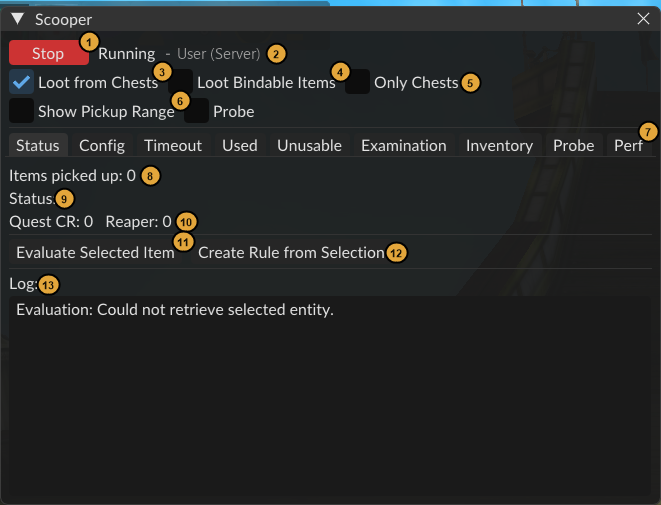
| # | Control | What it does |
|---|---|---|
| 1 | Start / Stop | Turns Scooper on or off. The button is red while it’s running. The toggle hotkey does the same. |
| 2 | Running – character (server) | Whether Scooper is running, and which character’s settings are loaded. |
| 3 | Loot from Chests | Lets every rule take matching items out of a chest you open. A rule’s own Chest setting can override it either way. Off by default. |
| 4 | Loot Bindable Items | Lets every rule take bound-on-acquire items. A rule’s own Bound setting can override it either way. Off by default. |
| 5 | Only Chests | Picks up nothing unless a chest or end-reward panel is open. Off by default. |
| 6 | Show Pickup Range | Draws a circle on the ground around everything a rule would take, sized to Scooper’s real reach. It only shows; it never changes what’s picked up, and it works while Scooper is stopped. |
| 7 | Tabs | Status and Config, then the lists described under The other tabs. |
| 8 | Items picked up | Pickups this session that Scooper confirmed actually landed. |
| 9 | Status | Shows “Inventory full or threshold reached.” when the slot threshold is stopping pickups. |
| 10 | Quest CR / Reaper | The current quest level and reaper difficulty, used by Only When Low Mana. |
| 11 | Evaluate Selected Item | Select something in game and press this. The log gets a full report: what Scooper thinks the object is, how far away it is against its reach, and for each rule whether it matched and which condition failed. The report is also copied to your clipboard. Start here whenever a rule doesn’t do what you expect. |
| 12 | Create Rule from Selection | Adds a custom rule for exactly the selected item, in every stack size. It does not match everything of that type. |
| 13 | Log | What Scooper is doing: matched, attempting, picked up, skipped (with the reason), failed and retrying. |
The Config tab
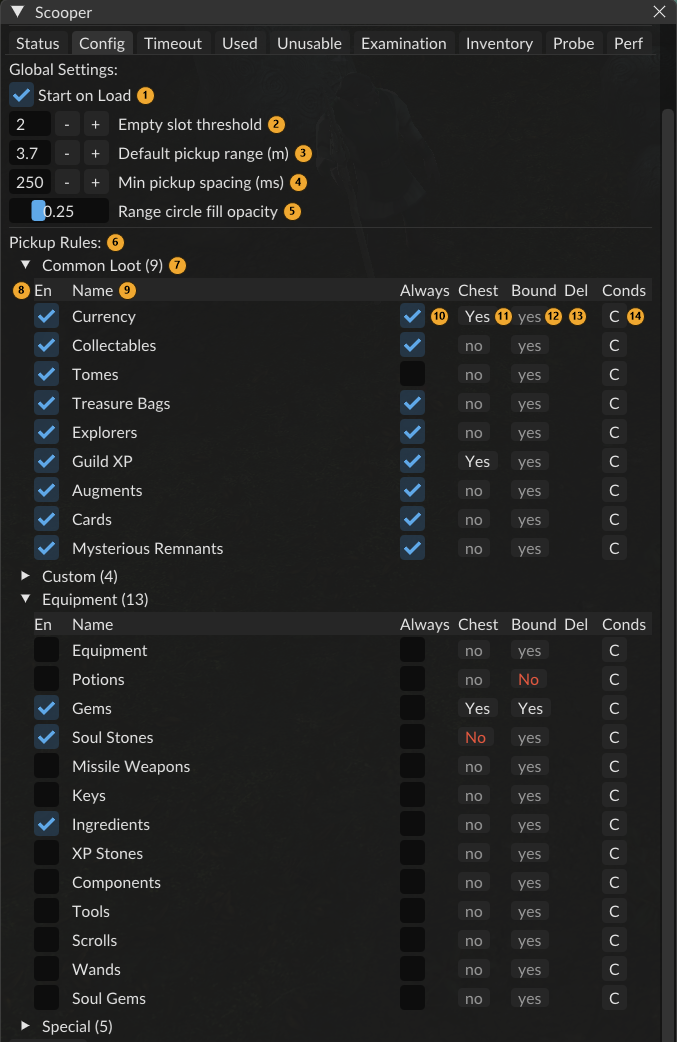
Global settings
These are per character.
| # | Setting | Default | What it does |
|---|---|---|---|
| 1 | Start on Load | On | Starts Scooper when you log in to this character. |
| 2 | Empty slot threshold | 2 | Stops taking items into your backpack once this many free slots or fewer are left, so you keep room for quest items. Coins, renown, items a gathering bag will hold, and rules with Always ignore it. |
| 3 | Default pickup range (m) | 3.7 | How far Scooper reaches for loose items. At least 0.5. |
| 4 | Min pickup spacing (ms) | 250 | The shortest gap between one pickup and the next: about four a second at 250. 0 removes the limit. |
| 5 | Range circle fill opacity | 0.25 | How solid the Show Pickup Range circles are, from 0 to 1. The outline always shows fully. |
Pickup rules
| # | Column | What it does |
|---|---|---|
| 6 | Pickup Rules | Your rule table, in groups. |
| 7 | Group | Click to open or close a group: Common Loot, Custom, Equipment, Special. Rules you add go in Custom. |
| 8 | En | Turns the rule on or off. |
| 9 | Name | Built-in rules are plain text. Click a custom rule’s name to open the rule editor. |
| 10 | Always | The rule ignores the empty slot threshold, and may take from end-reward panels. It doesn’t let the rule take from chests; that’s Chest. |
| 11 | Chest | Click to cycle. Dimmed yes/no: follows Loot from Chests. Yes: this rule takes items from a chest you open, even with Loot from Chests off. No: it never does, even with Loot from Chests on. |
| 12 | Bound | The same three settings for bound-on-acquire items, against Loot Bindable Items. |
| 13 | Del | Deletes a custom rule, with no confirmation. Built-in rules can only be switched off. |
| 14 | C | Opens the rule’s conditions. Works on built-in rules too. |
A dimmed yes or no in the Chest or Bound column means the rule follows the global switch, and shows what that switch currently gives. Click it to set Yes or No for just that rule; click again to cycle back. So you can leave Loot from Chests on and set No on the rules you never want from chests.
Add Rule, hotkeys and rule profiles
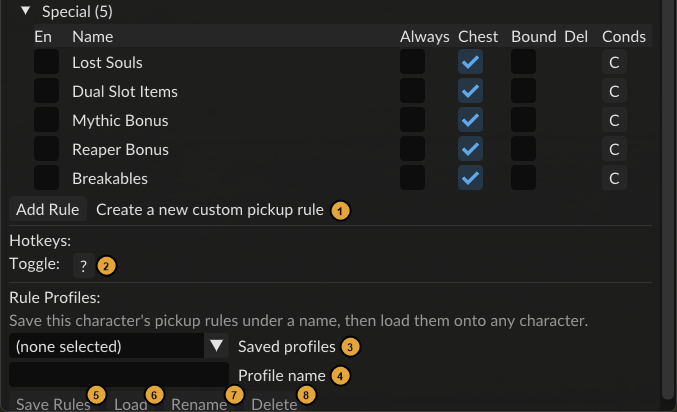
| # | Control | What it does |
|---|---|---|
| 1 | Add Rule | Adds an empty rule to Custom. It matches nothing until you set it up in the rule editor. |
| 2 | Toggle | Click, then press a key combination to set the hotkey that starts and stops Scooper. Esc cancels. Shared by all characters. |
| 3 | Saved profiles | Picks a saved profile and copies its name into the box below. |
| 4 | Profile name | The name Save Rules saves under, and the new name for Rename. |
| 5 | Save Rules | Saves this character’s whole rule table as a profile. Asks before replacing one with the same name. |
| 6 | Load | Replaces this character’s rule table with the selected profile, after asking. Custom rules that aren’t in the profile are lost. |
| 7 | Rename | Renames the selected profile to the typed name. |
| 8 | Delete | Deletes the selected profile, after asking. No character’s rules change. |
When a profile is selected, a line under the buttons shows how many rules it has, which character it came from and when it was saved.
Conditions
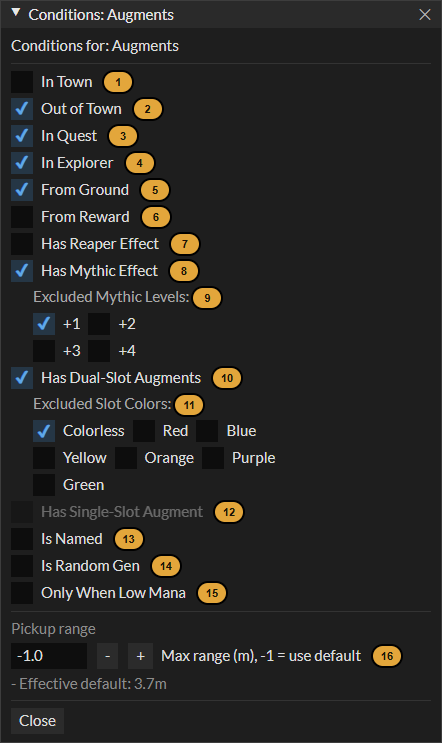
Conditions narrow a rule. The four place conditions (In Town, Out of Town, In Quest, In Explorer) pass if you’re in any ticked place; with none ticked, the rule works everywhere. Every other ticked condition must hold. Built-in rules start with Out of Town, In Quest, In Explorer and From Ground ticked.
| # | Condition | The rule only works when… |
|---|---|---|
| 1 | In Town | you’re in a town or public area. |
| 2 | Out of Town | you’re anywhere else. |
| 3 | In Quest | you’re in a quest (not a wilderness area). |
| 4 | In Explorer | you’re in a wilderness (explorer) area. |
| 5 | From Ground | the item is on the ground. If the rule’s Chest setting allows chests (see above), or From Reward is ticked, items in chests are still allowed. |
| 6 | From Reward | the item is in the end-reward panel you have open. |
| 7 | Has Reaper Effect | the item has a reaper bonus. |
| 8 | Has Mythic Effect | the item has a mythic bonus. |
| 9 | ↳ Excluded Mythic Levels | (with 8) mythic items at a ticked level are skipped. |
| 10 | Has Dual-Slot Augments | the item has two augment slots. Turns off Single-Slot. |
| 11 | ↳ Excluded Slot Colors | (with 10 or 12) items with a slot of a ticked colour are skipped. |
| 12 | Has Single-Slot Augment | the item has exactly one augment slot. |
| 13 | Is Named | the item is named loot. |
| 14 | Is Random Gen | the item is random loot. |
| 15 | Only When Low Mana | you need spell points. In reaper, that’s when you’re missing at least as much as a Lost Soul restores; otherwise, below 10%. |
| 16 | Max range (m) | Sets this rule’s own reach, larger or smaller than normal. -1 uses the normal range. |
Reaper and mythic conditions need the item examined first, so those rules act a moment after the others.
Custom rules
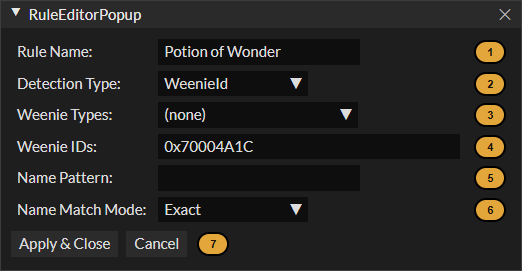
Changes apply when you press Apply & Close.
| # | Field | What it does |
|---|---|---|
| 1 | Rule Name | The name in the table and the log. |
| 2 | Detection Type | How the fields below are combined (see the next table). |
| 3 | Weenie Types | Item categories to match, such as Gem, Potion or Collectable. Click to add or remove one. |
| 4 | Weenie IDs | Item IDs to match, separated by commas, such as 0x70004A1C. Every copy of an item shares one ID; Evaluate Selected Item shows it. |
| 5 | Name Pattern | The name to match. Separate several with |, such as Mushroom|Moss|Fungus. Capitals don’t matter. |
| 6 | Name Match Mode | Exact, Contains, StartsWith, or Wildcard (* matches anything, as in Tome of *). |
| 7 | Apply & Close / Cancel | Saves the rule, or throws the changes away. |
| Detection type | Matches when… |
|---|---|
| WeenieType | the item’s category is one of the Weenie Types |
| WeenieId | the item’s ID is one of the Weenie IDs (what Create Rule from Selection makes) |
| NamePattern | the name matches |
| Composite | any of: the category, the ID or the name matches. Renown items are only matched by the GuildXP type. |
| TypeAndName | the category and the name both match, or the ID matches |
| SlotCount | the item has two augment slots |
| ExamEffect | the item has a mythic bonus |
| ReaperBonus | the item has a reaper bonus |
| GuildXP | the item gives Guild renown |
The other tabs
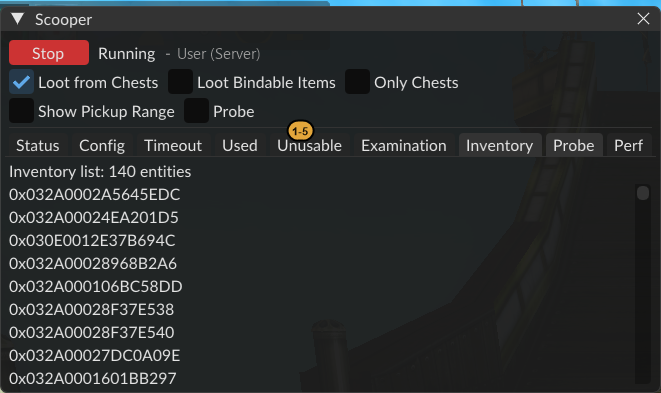
These show what Scooper is keeping track of. Nothing on them is a setting.
| Tab | Lists |
|---|---|
| Timeout | Objects waiting to be retried after a pickup that didn’t take, with the time left. |
| Used | Objects already picked up or used, which won’t be tried again. |
| Unusable | Objects Scooper decided it can’t use. Cleared whenever you change a rule or setting. |
| Examination | Items waiting for the game to send their details, for mythic and reaper rules. |
| Inventory | Items already in your backpack or bags, which Scooper ignores. |
Perf
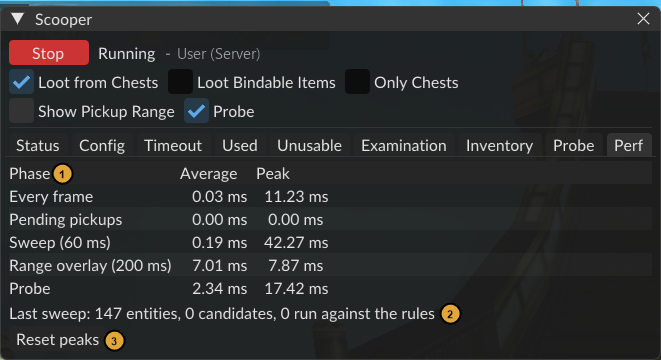
| # | Field | What it shows |
|---|---|---|
| 1 | Phase / Average / Peak | How long each part of Scooper’s work takes per frame, matching Dungeon Helper’s own Performance tab. |
| 2 | Last sweep | How many nearby objects Scooper saw, how many it considered, and how many it ran against your rules. |
| 3 | Reset peaks | Clears the Peak column. |
The built-in rules
Built-in rules can be switched on and off and given conditions, but not renamed or deleted.
| Group | Rule | On by default | Picks up |
|---|---|---|---|
| Common Loot | Currency | ✓ | coins and Piles of Gold |
| Common Loot | Collectables | ✓ | collectables and collection spots (mushrooms, moss, bones, rubble, bookcases, scroll racks, swamp pearls…) |
| Common Loot | Tomes | ✓ | tomes |
| Common Loot | Treasure Bags | ✓ | treasure bags |
| Common Loot | Explorers | ✓ | explorer texts, which it reads and closes |
| Common Loot | Guild XP | ✓ | Guild renown items |
| Common Loot | Augments | ✓ | augments |
| Common Loot | Cards | ✓ | cards |
| Common Loot | Mysterious Remnants | ✓ | Mysterious Remnants |
| Equipment | Equipment | clothing, rings, armour, runearms, shields, weapons and jewellery | |
| Equipment | Potions, Gems, Soul Stones, Soul Gems, Missile Weapons, Keys, Ingredients, XP Stones, Components, Tools, Scrolls, Wands | the item of that name | |
| Special | Lost Souls | Lost Souls, only when Only When Low Mana passes | |
| Special | Dual Slot Items | items with two augment slots | |
| Special | Mythic Bonus | named items with a mythic bonus | |
| Special | Reaper Bonus | named items with a reaper bonus | |
| Special | Breakables | crates, barrels and other things you smash |
Words used here
| Term | Meaning |
|---|---|
| Weenie | The game’s name for an item template. Every copy of an item shares one weenie ID; its weenie type is its category. |
| Rule | One row of the rule table: what to match, when, and how. |
| Built-in rule | A rule that comes with Scooper. You can switch it off but not delete it. |
| Trigger object | Something you use once rather than carry: a collection spot, a crate, a treasure bag, a Pile of Gold. Only the built-in rules made for them use these. |
| World object | A door, lever, lore text or crafting station. Scooper never uses these, except explorer texts through the Explorers rule. |
| Bound on acquire | An item that binds to you when picked up. The game asks you to confirm. |
| Reserved loot | Chest loot the game has assigned to one party member. Scooper never takes loot reserved for someone else. |
| Examine | Asking the game for an item’s full details, the same as inspecting it. Mythic and reaper rules need it. |
| Gathering bag | A bag such as the Collectables or Gem bag. What it holds doesn’t use backpack slots. |
| Rule profile | A saved, named copy of a rule table that any character can load. |